You just want a clean, simple way to show off the work you're proud of.
In that case, follow these steps to create a minimalist portfolio, inspired by photographer Kristi Tüvi's website.
Step 1. The Editorial Layout Block
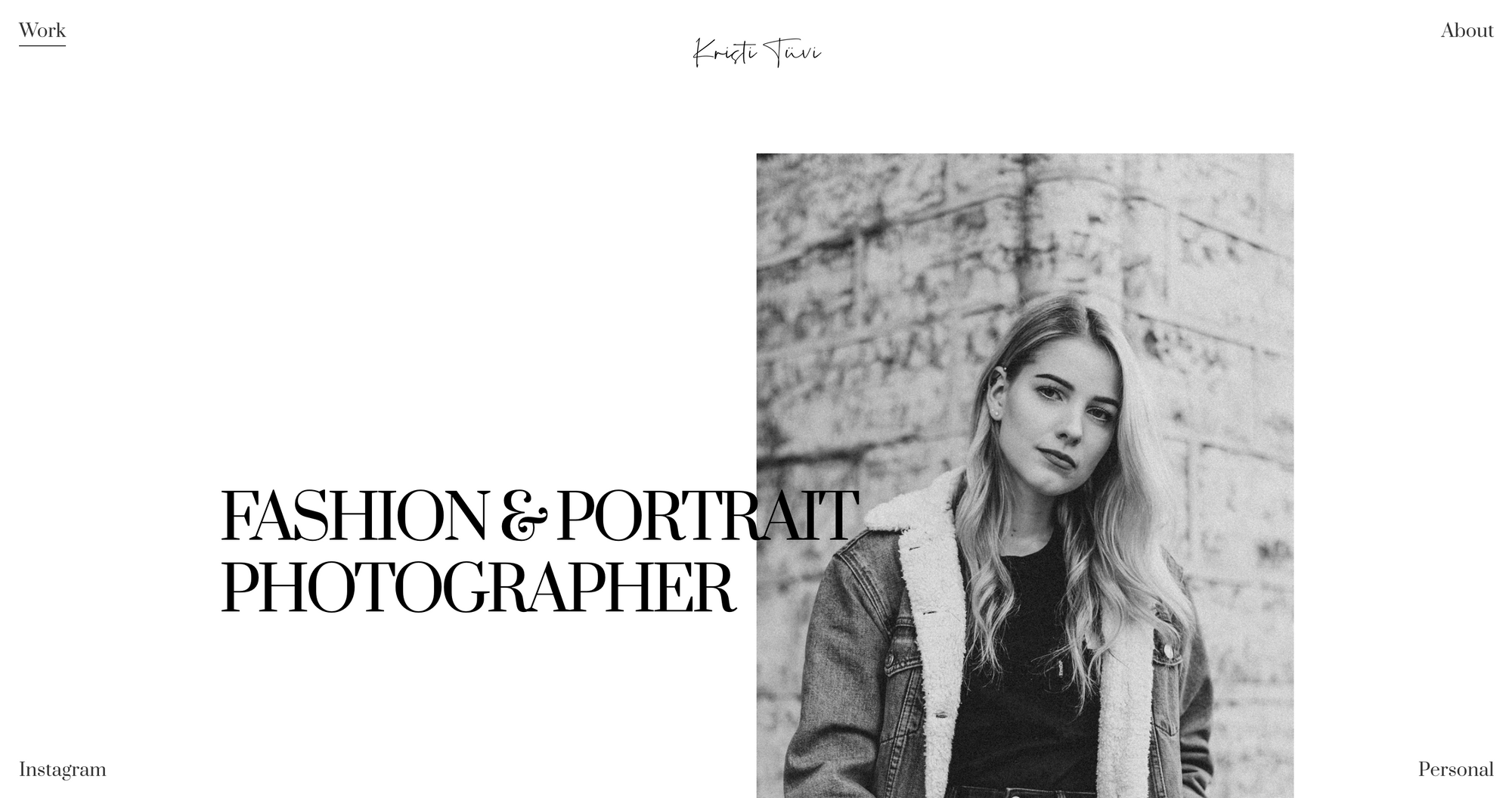
For her homepage header, Kristi simply dragged an Editorial Layout block onto her page, then dropped a GIF inside it. She changed the headline to 'Fashion & Portrait Photographer' and boom, she was done.
Step 2. The Gallery Grid block
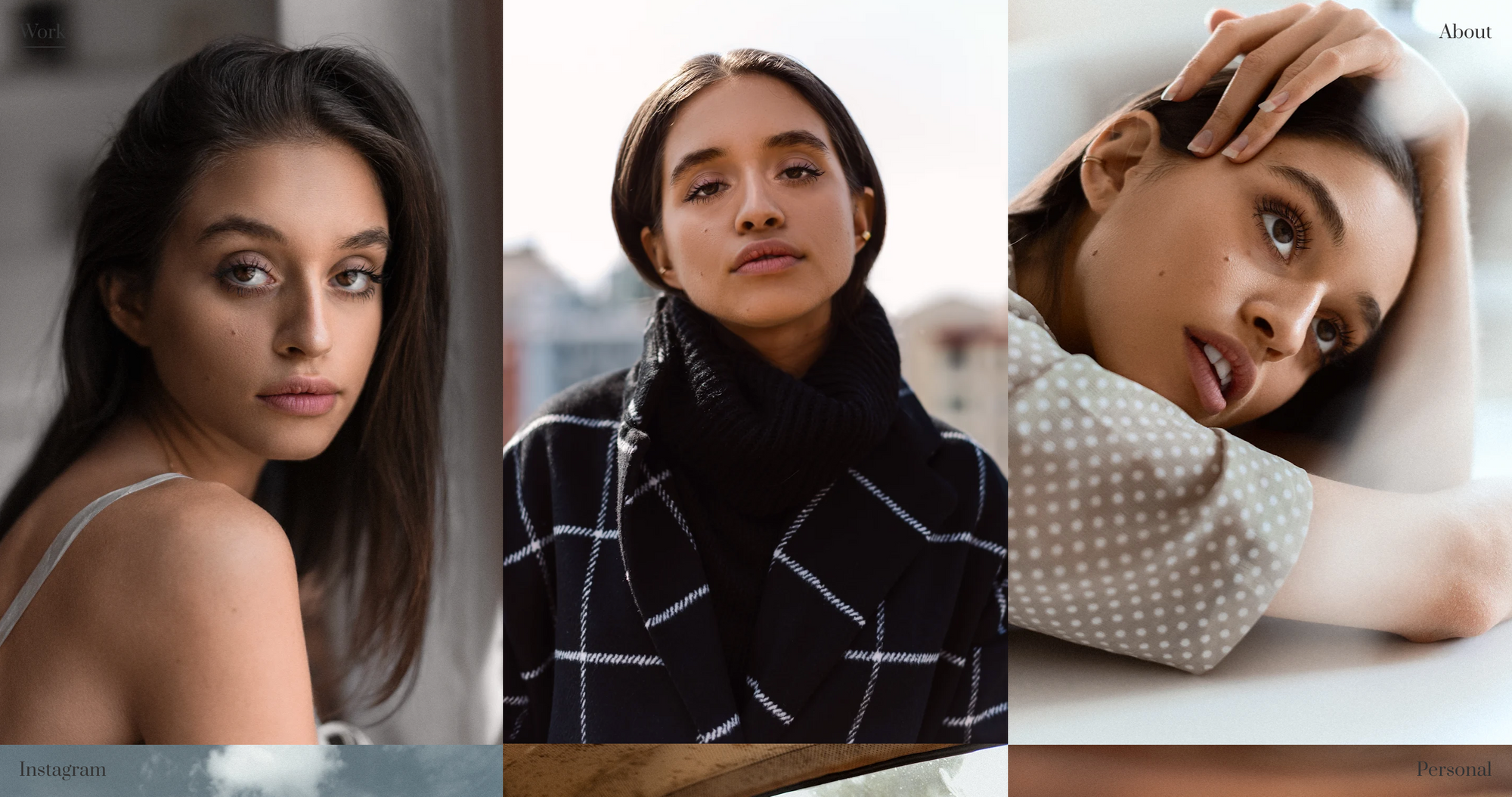
To showcase her photography on her homepage, Kristi used the Gallery Grid block and made it full width. She then removed the gap between images. Just click ⚙️ next to the block to choose similar settings.
(P.S. You can achieve the same look with the Rectangle Grid portfolio grid, if you created projects for your work!)
Step 3. Four Corners Navigation
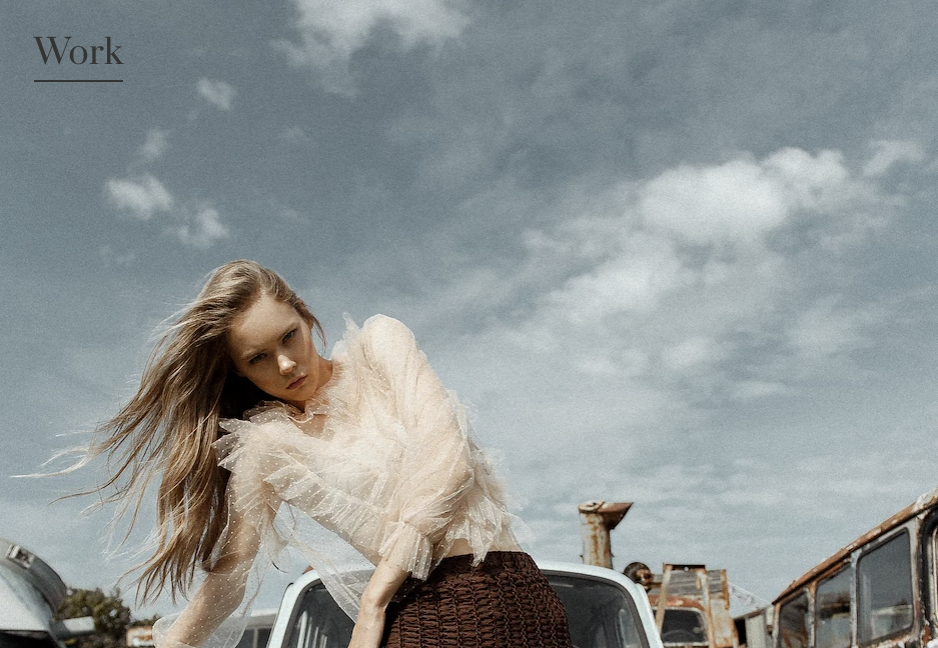
Under Design > Site Navigation, Kristi chose the Four Corners navigation so each menu item appears in a different corner of the screen. She then made the text size and color subtle so it didn't distract from her photography.
Step 4. The About Intro Block
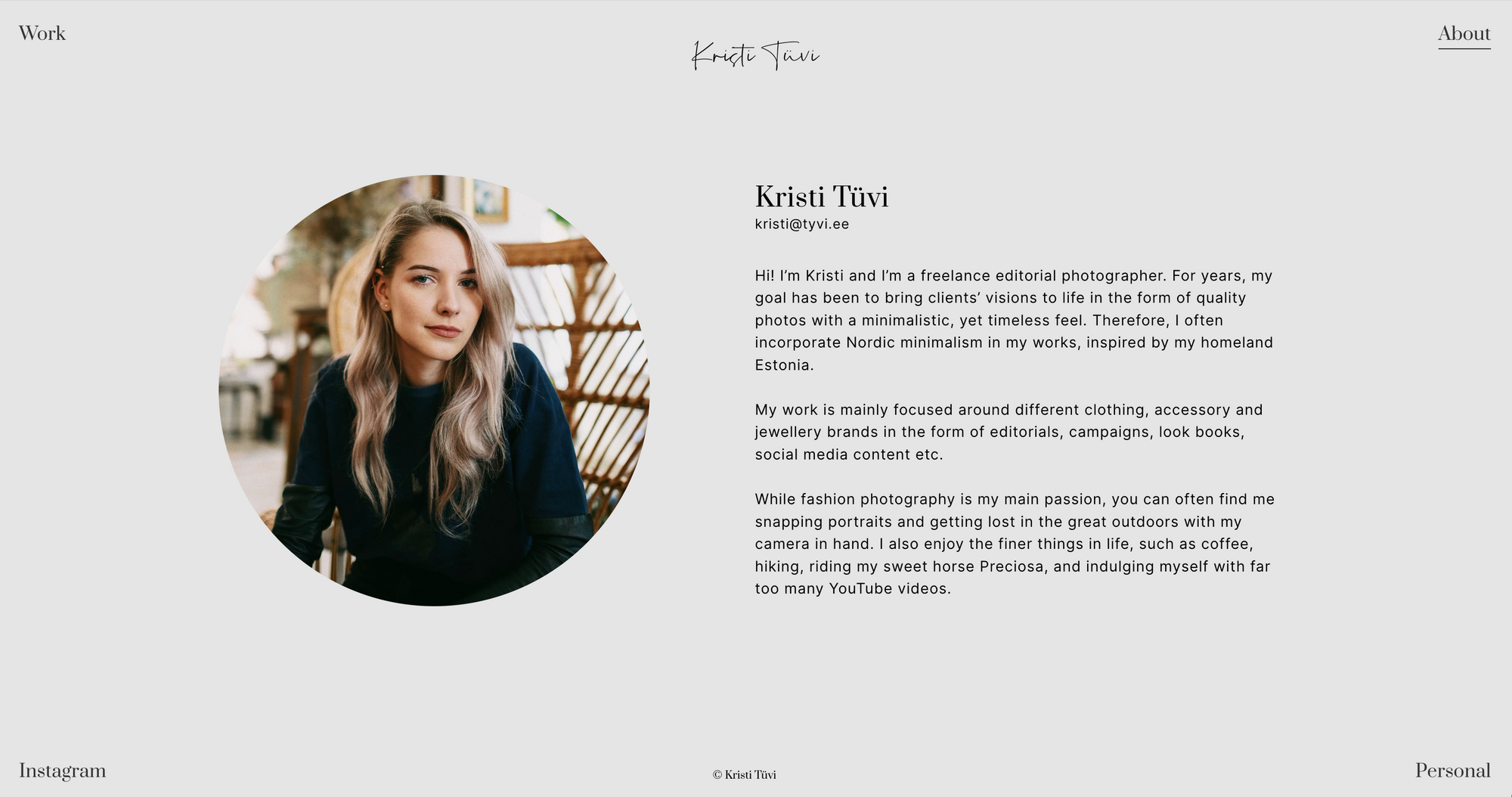
On her About page, Kristi dragged in an About Intro block. She dropped her photo inside, swapped the text with her bio and she was done.
Follow these steps and you can create your own minimalist portfolio in about 15 minutes. Want to try to prove me wrong? Start here.
Related reading:
 Zoe
Zoe Zoe
Zoe